For Accountant, office · 3 min
Collect fees and print receipts
The fee counter in SchoolOS: one search, one form, one receipt. Part payments and advances are handled for you.
adimata.com/schoolos/app/fees
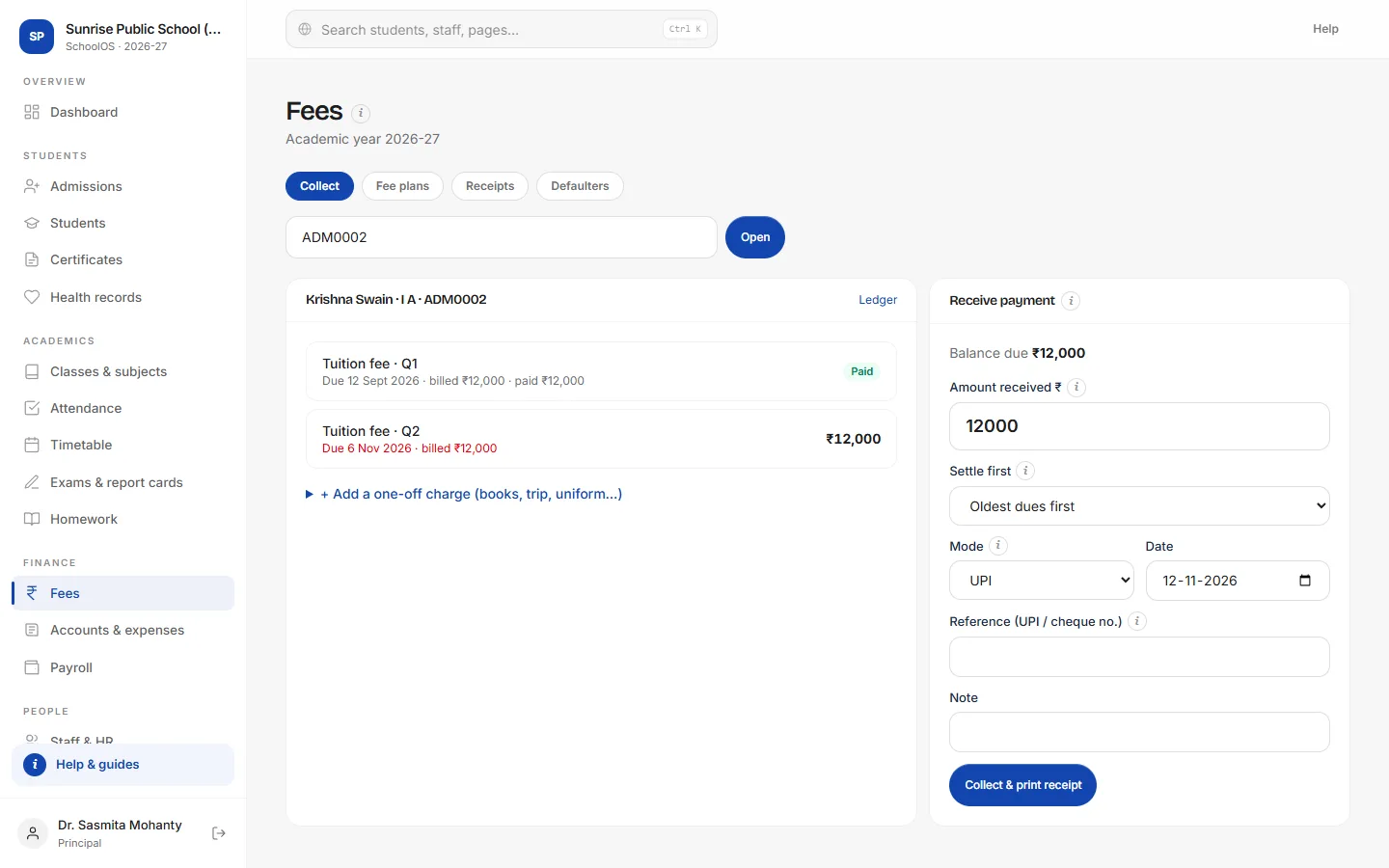
- 1Find the studentType the admission number or name and press Open.
- 2Check what is dueEach bill shows its due date, concession, fine and balance. Open a bill to give a concession.
- 3Enter the paymentThe full balance is filled in; change it for a part payment. Pick the mode and add the UPI or cheque reference.
- 4Collect and printA numbered receipt opens, with the amount in words, ready to print or send on WhatsApp.
adimata.com/schoolos/app/fees/receipt/…
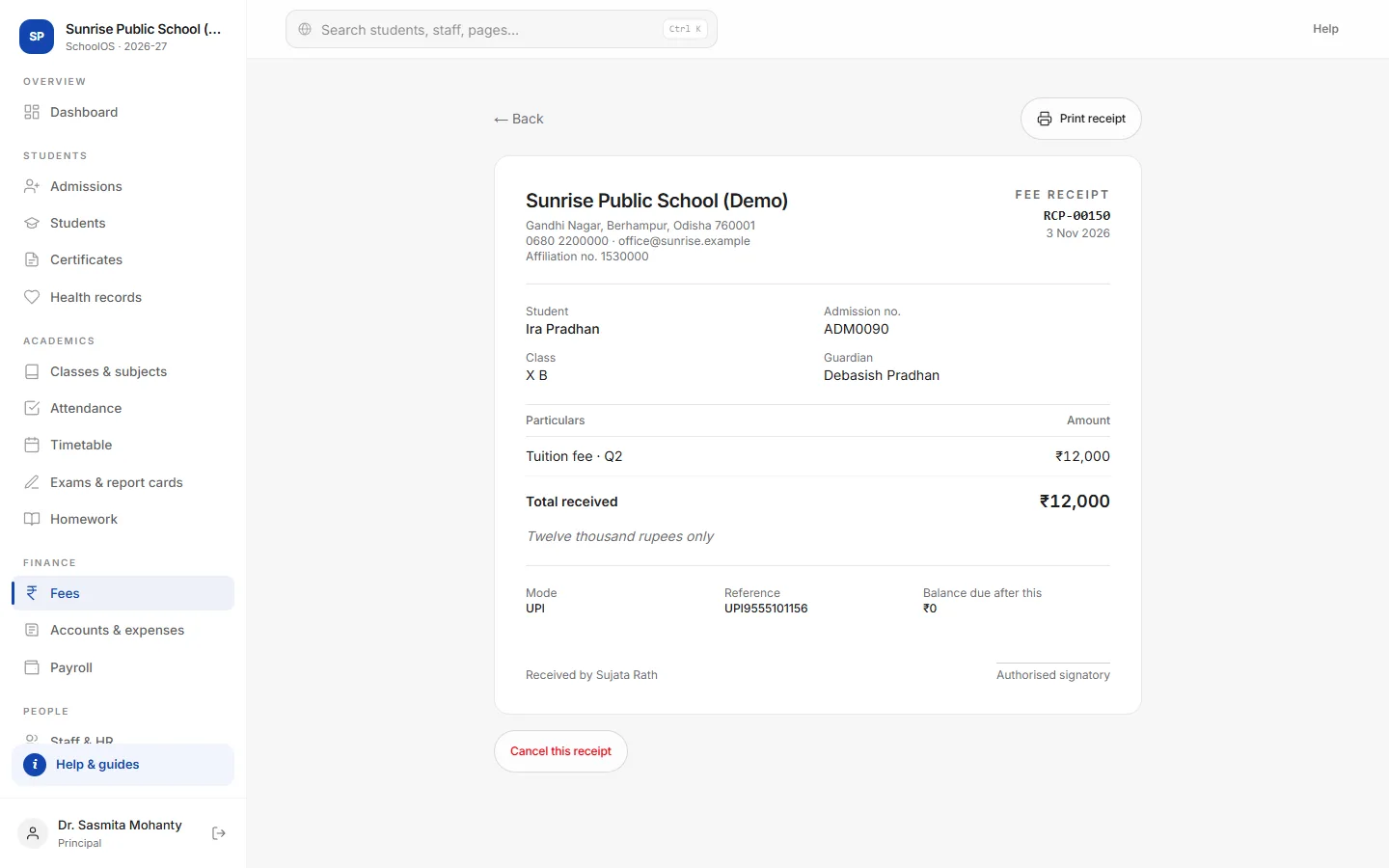
- 5Print or sendPrint for the parent, or send it on WhatsApp if the school's number is linked.
- 6Cancel a mistakeCancelling puts the amount back on the student's dues and is logged.
Tips
- Receipt numbers never repeat, even with two cashiers.
- Parents can pay with the UPI button in their portal; record their reference here.