4 min read
Import your old data from Excel
Most schools are fully loaded in under an hour. Import in this order: classes, students, staff, then opening fee dues. Nothing is saved until you press Import now.
- Who can do this
- Office admin, accountant
- You need
- The Import data link is in the Admin menu for anyone who can edit Students, Staff & HR or Fees. Each tab needs Edit on its own module.
- Not your job? Pick your role →
Before you start
- Classes created in Classes & subjects, with the same names your sheet uses (VII, not 7th).
- Your sheet in Excel or Google Sheets, one row per student or staff member.
- A backup copy of the original sheet.
Import data: students
adimata.com/schoolos/app/import
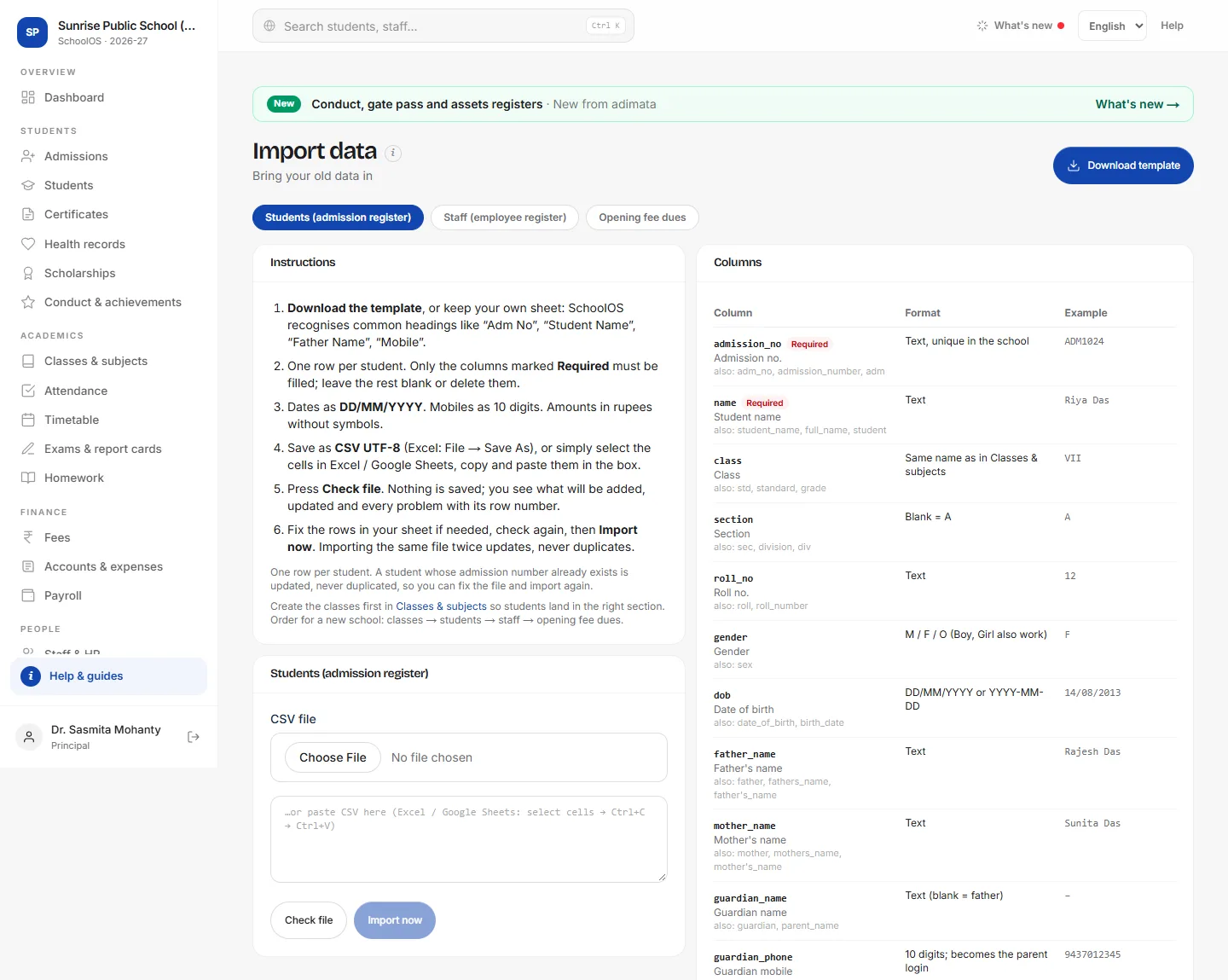
- 1Choose what to importThree tabs: Students (admission register), Staff (employee register) and Opening fee dues. Each tab has its own columns.
- 2Download the templateA ready CSV with the right headings and one example row. Or keep your own sheet: common headings like Adm No, Student Name, Father Name and Mobile are recognised.Step by step
- Press Download template.
- Open it in Excel or Google Sheets.
- Delete the example row and paste your students below the headings.
- Only admission_no and name must be filled; delete columns you do not have.
- 3Read the column guideEvery column with its format and an example; Required ones are marked. Dates as DD/MM/YYYY, mobiles as 10 digits, amounts without the ₹ sign. “also:” lists other headings that work.
- 4Upload or pasteUpload the CSV, or select the cells in Excel, copy, and paste them in the box. No need to save as CSV when you paste.Step by step
- In Excel: select the cells including the heading row.
- Press Ctrl+C.
- Click in the box under CSV file and press Ctrl+V.
- Or use File → Save As → CSV UTF-8 and upload the file.
- 5Check the fileShows how many rows are new, how many will update existing students, and every problem with its row number. Nothing is saved.You should see: “Checked, nothing saved yet”, the counts, and a yellow table of problems if any.
- 6ImportFix any rows in your sheet, check again, then press Import now. Importing the same file twice updates, never duplicates.You should see: “✓ Imported.” with the number of rows added and updated.
Import data: opening fee dues
adimata.com/schoolos/app/import
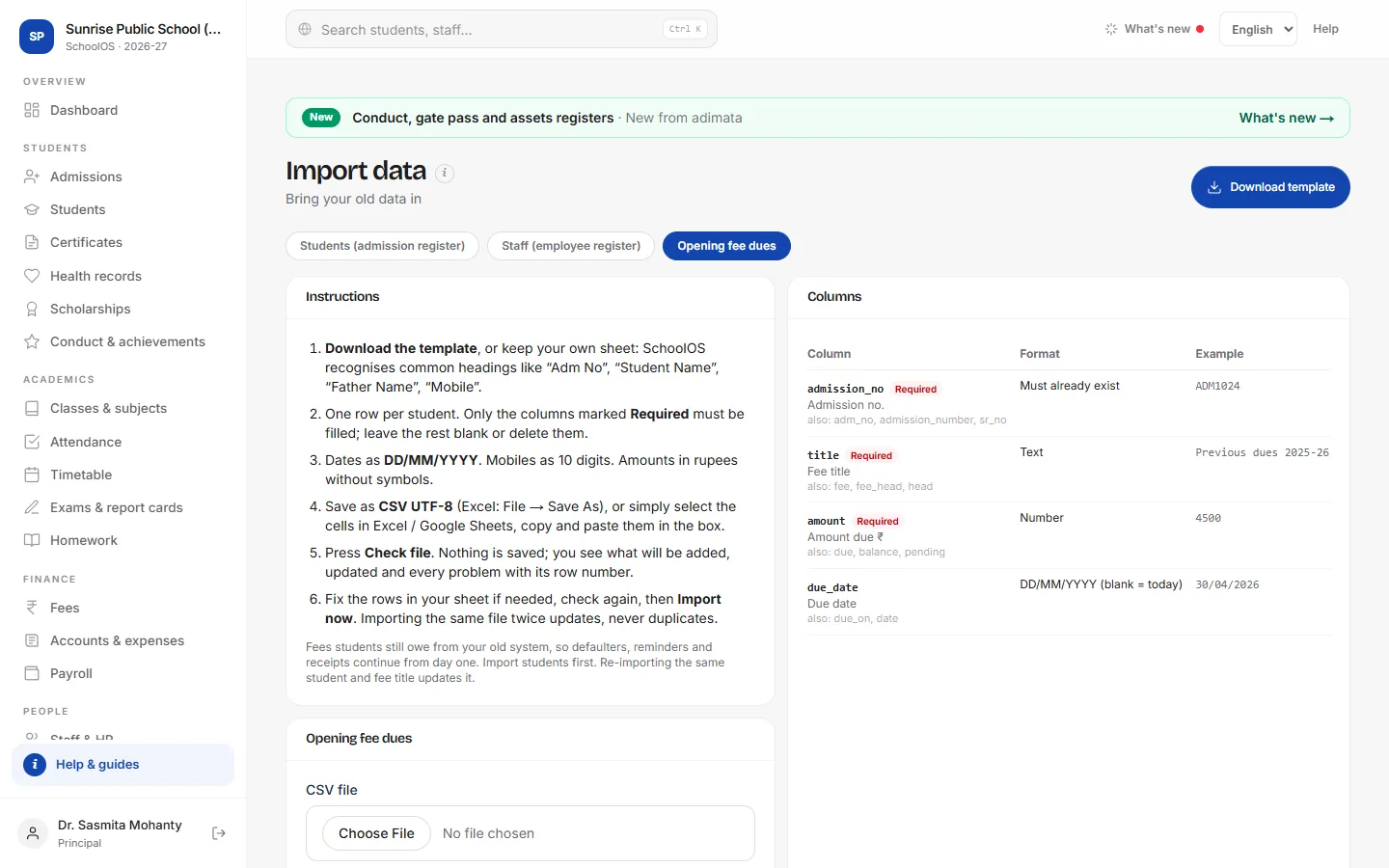
- 7Bring pending fees acrossWhat each student still owes from last year or your old software, so defaulters and reminders work from day one. Import students first: each admission number must already exist.
- 8Three columns are enoughadmission_no, title (for example Previous dues 2025-26) and amount. Add due_date if you know it; blank means today.
Common mistakes
- Uploading an .xlsx file: save it as CSV UTF-8, or copy and paste the cells.
- Dates like 14-8-13: write 14/08/2013.
- Class names that differ from Classes & subjects (Class 7, VII-A): students land without a class.
Tips
- Create classes first in Classes & subjects, with the same names as in your sheet (VII, not 7th).
- A fix-up file with just admission_no and one column (say guardian_phone) updates only that column.
- Only the last 4 digits of Aadhaar are ever stored, even if the full number is pasted.
- Up to 20,000 rows and 5 MB per file; split bigger files.
Problems and questions
Import now is greyed out.
Press Check file first. Import now turns on only after a check that found no file-level error.
It says “Missing column(s)”.
A required column (admission_no and name for students) has no heading SchoolOS recognises. Rename the heading, or download the template.
It says the file looks like an .xlsx file.
Excel files can't be read directly. In Excel use File → Save As → CSV UTF-8, or select the cells, copy and paste them in the box.
Will importing again create duplicates?
No. Rows are matched by admission number (students), employee code (staff), or admission number plus fee title (dues), and updated.
It says my plan allows N active students.
Your plan has a student limit. Contact adimata to raise it, or import fewer rows.