1 min read
Add staff and keep their records
Every staff member has one record. It feeds the timetable, class teachers, staff attendance, payroll, staff ID cards and logins.
- Who can do this
- Office admin, principal
- You need
- Staff & HR module, Edit to add and change. Pay fields show only to people with Payroll access.
- Not your job? Pick your role →
Before you start
- For many staff at once, use Import data → Staff (employee register).
Staff & HR
adimata.com/schoolos/app/staff
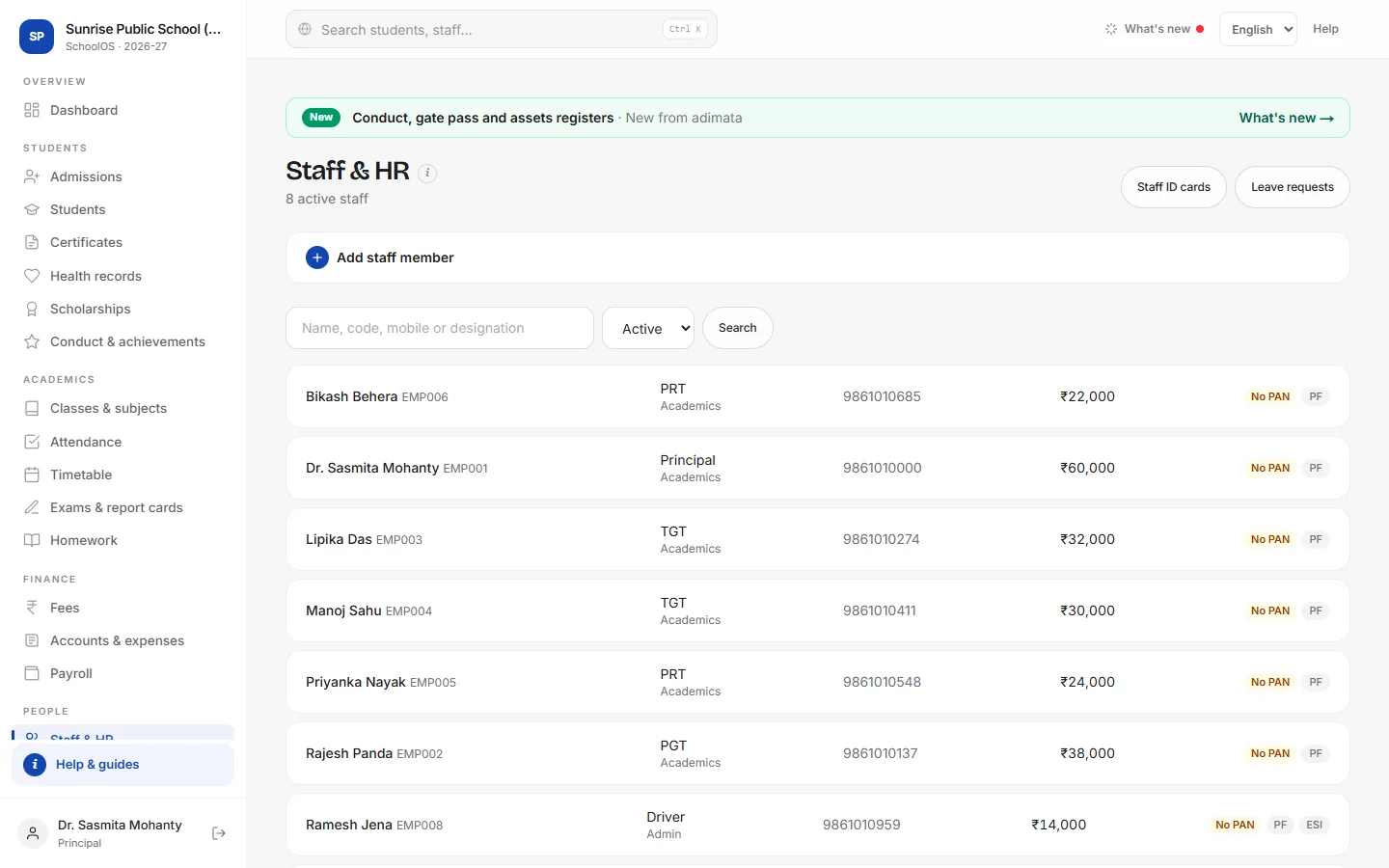
- 1Add a staff memberOpen Add staff member.Step by step
- Name and Employee code (the next code is filled in).
- Designation (PGT, TGT, PRT…), Department, Mobile, Email.
- Basic pay ₹/month and Allowances ₹/month, if you run payroll.
- PAN, UAN (PF), Bank account, IFSC; tick PF applicable and ESI applicable.
- Press Add staff member.
- 2Find and editSearch by name, code, mobile or designation. Click a row to open it, change fields and Save; Upload photo adds the ID card photo.
- 3When someone leavesSet Status to Left and Save. They drop off attendance, payroll and timetables; history stays. Disable their login in Users & roles too.
Common mistakes
- PAN or IFSC in the wrong format: SchoolOS checks them (ABCDE1234F, SBIN0001234).
Tips
- Link each teacher's login to their staff record for My day and Check in.
- Staff ID cards and Leave requests are buttons at the top.
Problems and questions
A teacher is missing from class teacher or timetable lists.
Only Active staff are listed.
I can't see the pay fields.
They show only if your role can view Payroll.