1 min read
Leave requests from parents and staff
Leave requests has two tabs: Student leave and Staff leave. A request waits as Pending until someone with Edit approves or rejects it.
- Who can do this
- Office admin, principal
- You need
- Leave requests module, Edit on Leave requests (Office admin and Principal by default). Parents apply from their portal; the office enters staff leave.
- Not your job? Pick your role →
Student leave
adimata.com/schoolos/app/r/leaves
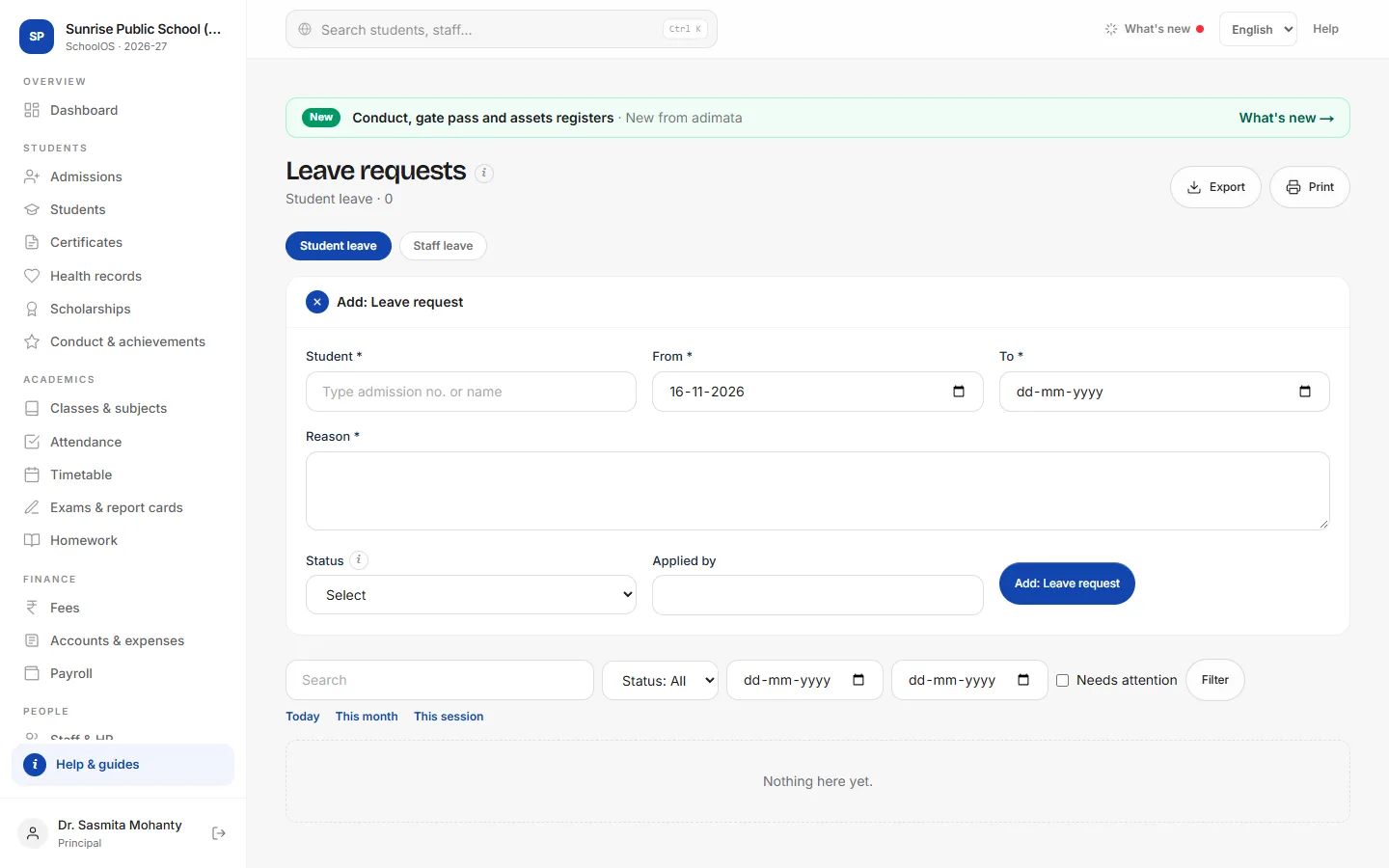
- 1See what is waitingTick Needs attention: pending requests show Needs action. The dashboard counts them under leave requests.
- 2Approve or rejectOpen the request, read the reason and dates, and press Approved or Rejected.You should see: Approved: every day from From to To, except Sundays, is marked L in attendance, and the parent sees the new status.
- 3Record a phone call or diary noteAdd: Leave request with the Student, From, To, Reason and Status.
Staff leave
adimata.com/schoolos/app/r/staffleaves
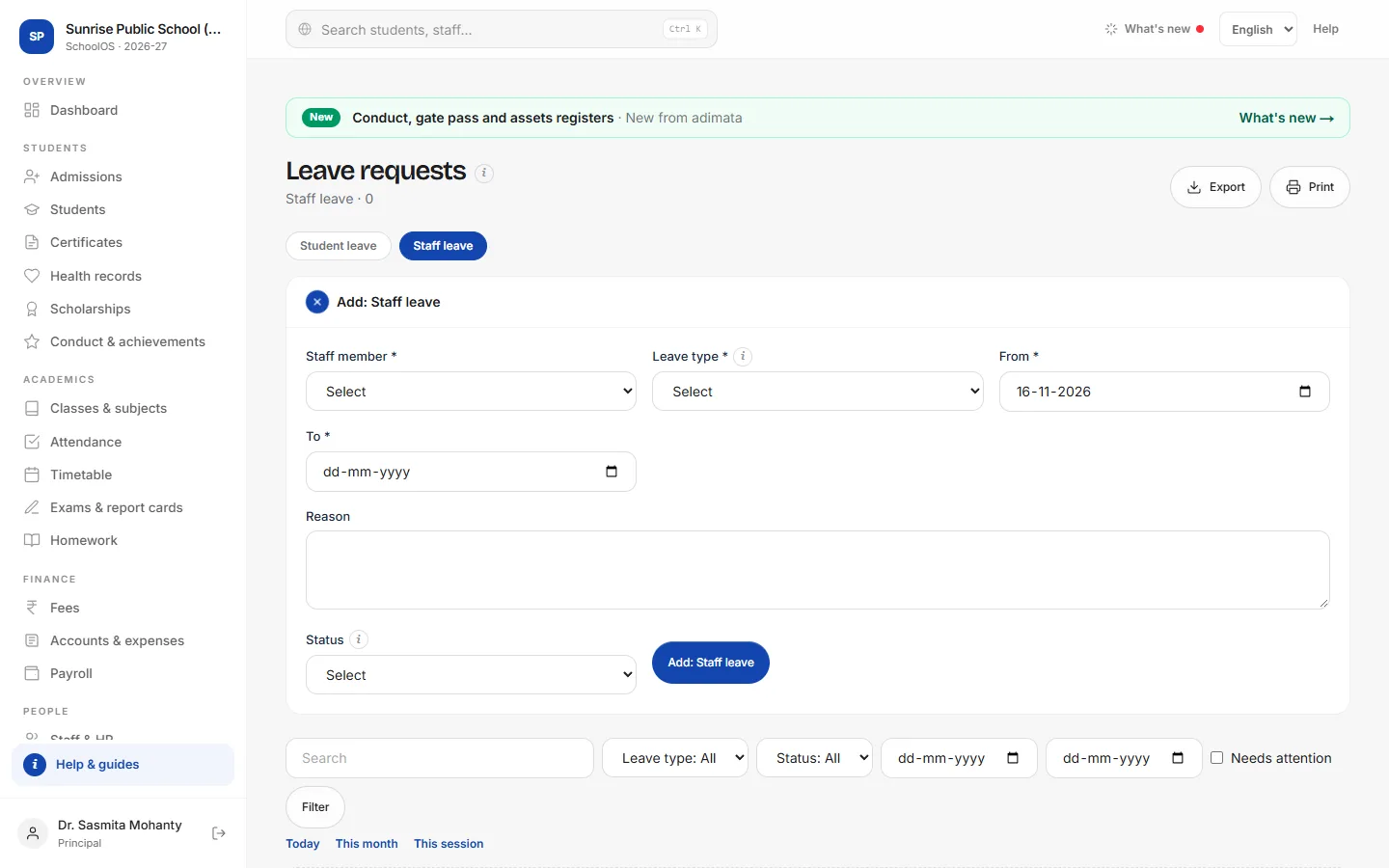
- 4Record staff leaveStaff member, Leave type (Casual, Sick, Earned, Maternity, Duty, Loss of pay), From, To, Reason and Status. Approved staff leave appears on Timetable → Substitutions.
Common mistakes
- Changing Approved to Rejected and expecting attendance to change back: correct those days on Attendance.
- Approving a Loss of pay leave type and expecting a pay cut: approved leave is L, which payroll pays. Mark A instead.
Tips
- Approve before the leave starts, so the class teacher sees L instead of marking A.
- One approval covers up to 60 days; split longer leave.
Problems and questions
A parent says they applied but I can't see it.
Check the Student leave tab and press Clear filters.
Can teachers apply for their own leave?
Only if their role has Edit on Leave requests. Usually the office records it.