2 min read
Staff attendance and check-in
Two ways to record staff attendance: each teacher checks in from their own dashboard, or the office marks everyone on the Staff tab. Both feed the same register, Staff today and payroll.
- Who can do this
- Principal, office, every teacher
- You need
- Check in appears for any login linked to an active staff record. Staff today shows to roles with Staff & HR access; saving the Staff tab needs Edit on Staff & HR.
- Not your job? Pick your role →
Before you start
- Each teacher's login linked to their staff record (Users & roles → open the login → Link).
- Staff check-in time and grace minutes set in School settings.
The principal's Staff today board
adimata.com/schoolos/app
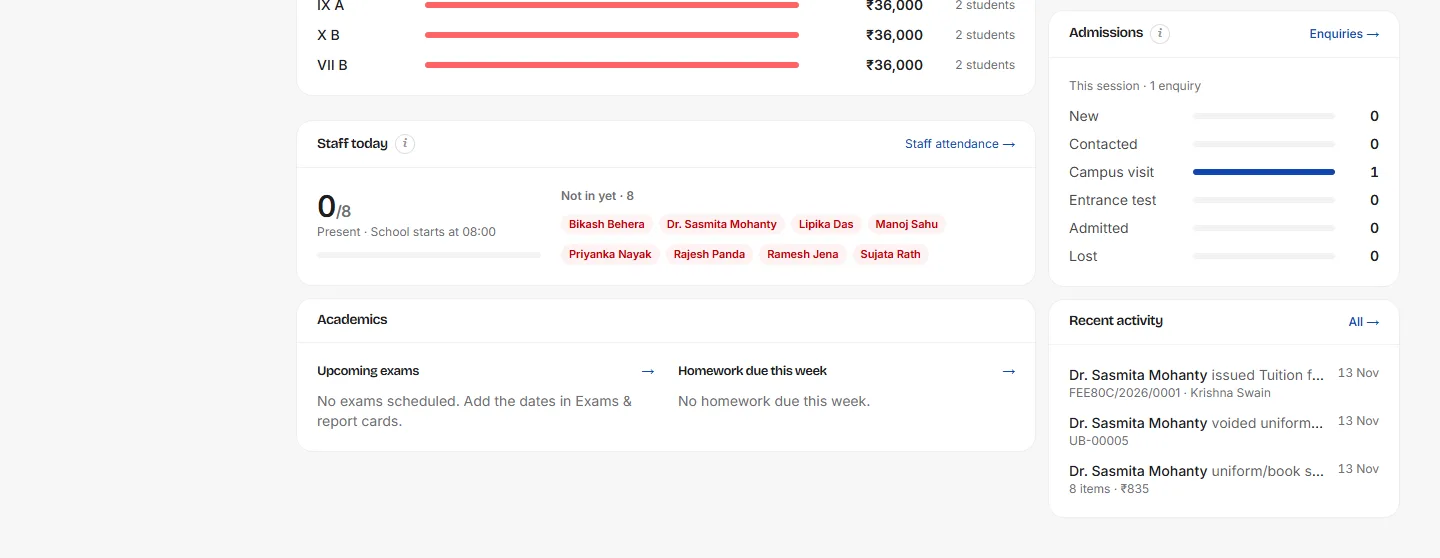
- 1Teachers: check inOn arrival, tap Check in on your dashboard (My attendance); tap Check out when you leave. The first check-in of the day counts.
- 2See the staff room at a glancePresent out of total, with the school's start time.
- 3Late arrivalsAnyone who checked in after the start time plus the grace minutes, with their time.
- 4Not in yetStaff with no check-in and no leave today. Call them or arrange cover.
Marking staff attendance
adimata.com/schoolos/app/attendance
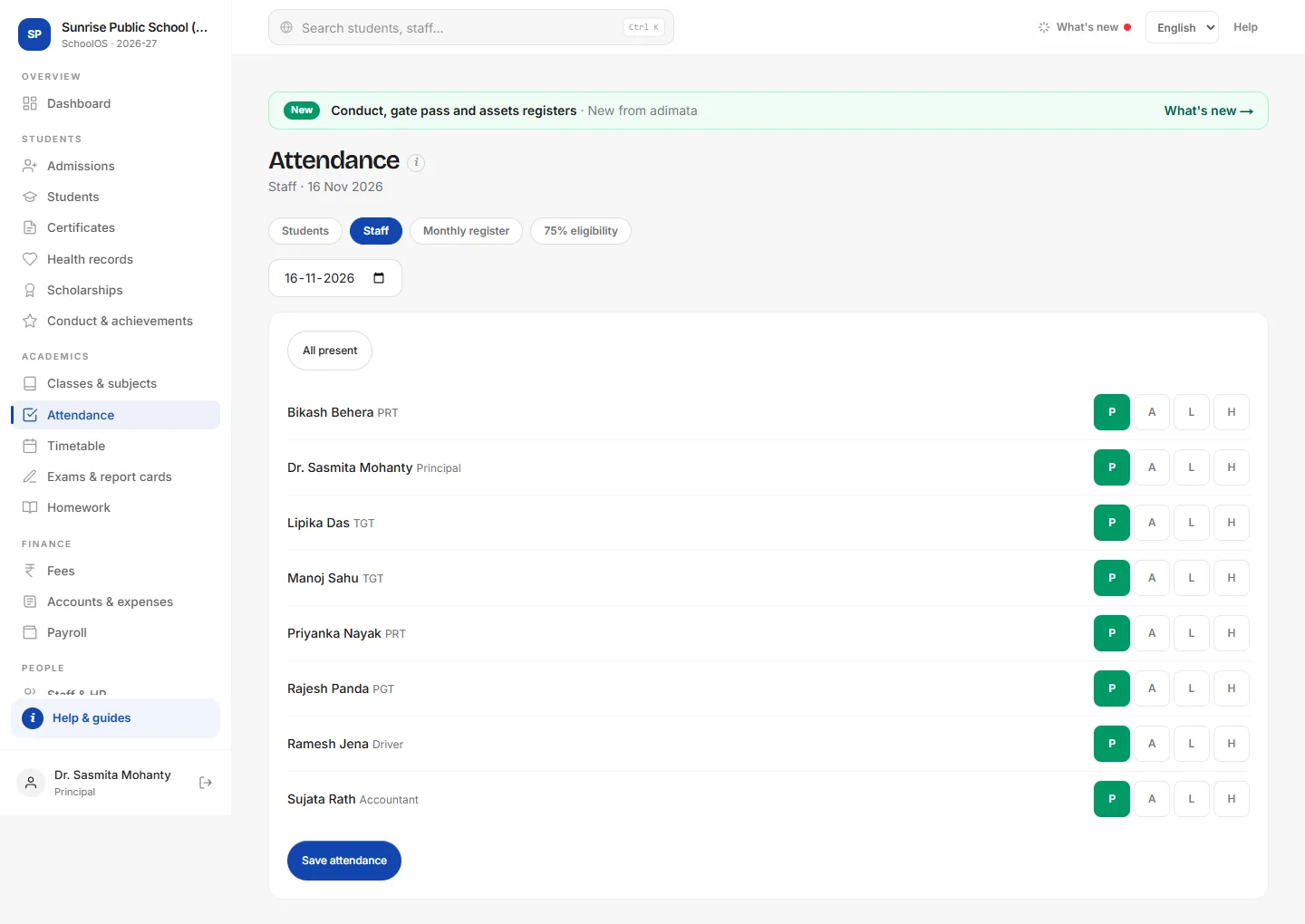
- 5Open the Staff tabAttendance → Staff: every active staff member with check-in and check-out times.
- 6Mark or correctP, A, L or H for anyone who did not check in. Saving never erases check-in times.
- 7SavePress Save attendance. Absent days become loss of pay in Payroll; L is paid leave; H is half a day.
Check-in time and grace minutes
adimata.com/schoolos/app/settings
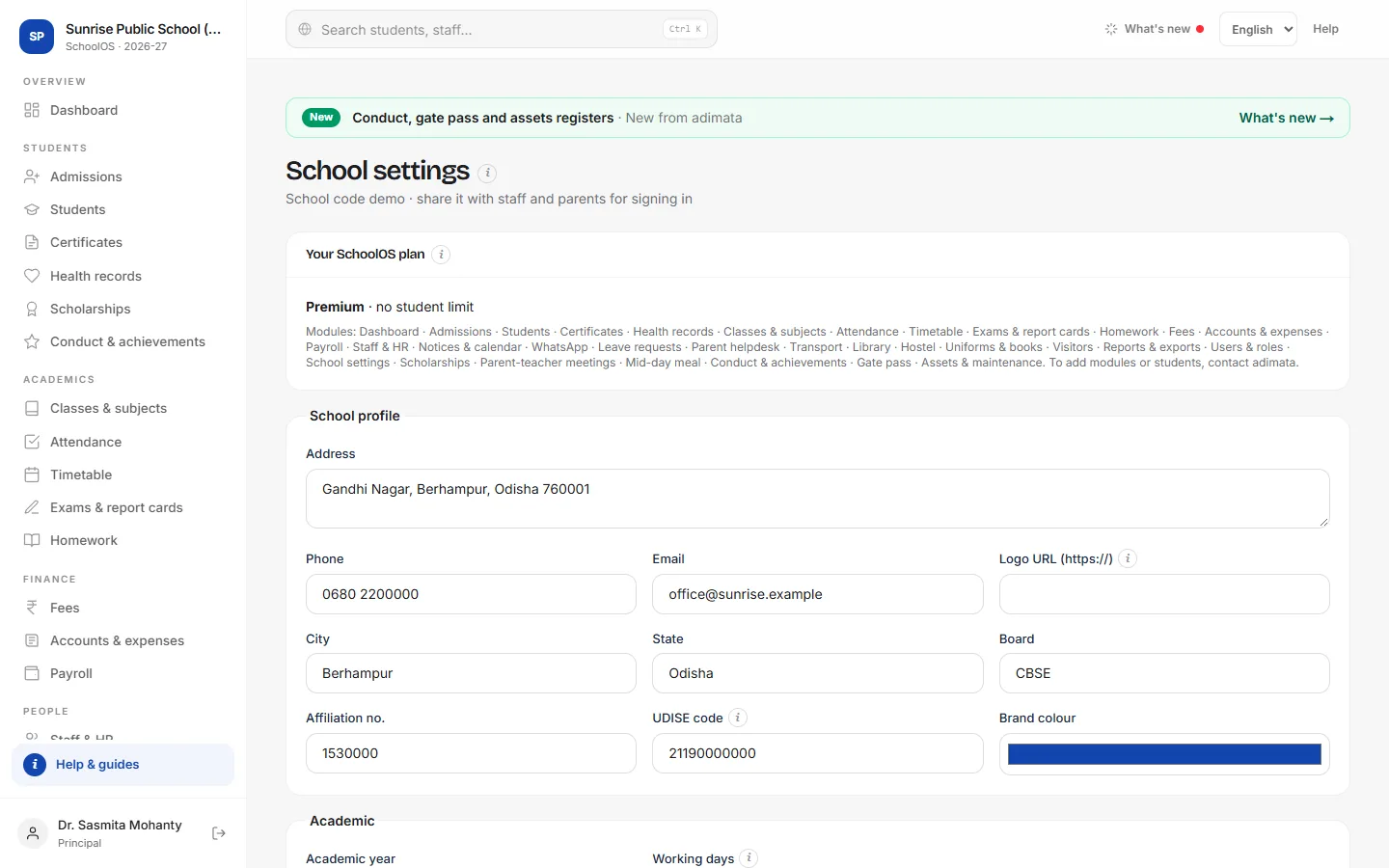
- 8Set the start timeStaff checking in after this time plus the grace minutes show as late.
- 9Set the graceFor example 10 minutes. Press Save settings.
Common mistakes
- Marking A for a teacher on approved leave: mark L, or payroll deducts loss of pay.
Tips
- A teacher's Check in button appears on their dashboard when their login is linked to their staff record (Users & roles).
- Approved staff leave shows as L and is not counted as late.
Problems and questions
I don't see Check in.
Your login isn't linked to your staff record, or the record is not Active. Ask the principal to link it in Users & roles.
I forgot to check in.
Check-in times can't be typed in. The office marks your status on the Staff tab instead.
Saving the Staff tab sends me to the dashboard.
Your role can view Staff & HR but not edit it. Saving staff attendance needs Edit.