3 min read
Start a new academic year
SchoolOS keeps one running record per student, so a new year is a few careful steps, not a fresh start. Do them in this order, on a day when no one is marking attendance or collecting fees.
- Who can do this
- Principal, office admin, accountant
- You need
- Promotion needs Edit on Students. The academic year needs Edit on School settings. Fee plans need Edit on Fees.
- Not your job? Pick your role →
Before you start
- Final results published and report cards printed.
- Transfer certificates issued for students who are leaving (a TC can mark them as left).
- A backup of the old class list: Reports & exports → Download → Students (UDISE+ fields).
Promote a class (year end)
adimata.com/schoolos/app/students
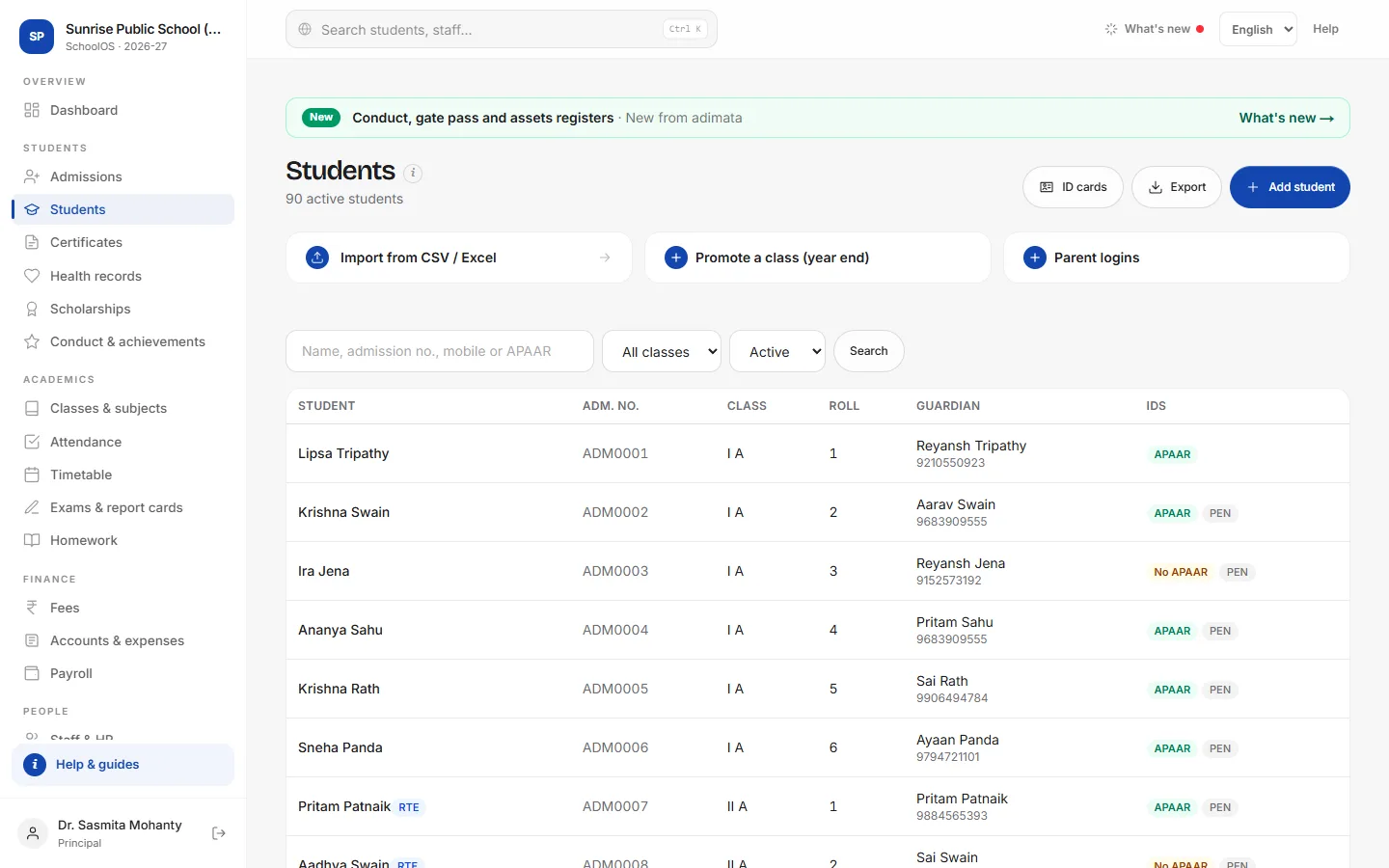
- 1Start from the top classPromote from the highest class down: first XII to Passed out (alumni), then XI to XII, then X to XI, and so on. Going bottom-up puts two years of students in the same section.
- 2Promote one sectionEach promotion moves every active student of one section.Step by step
- Open Promote a class (year end).
- From: the current section, for example XI A.
- To: the next section, for example XII A, or Passed out (alumni) for the final class.
- Press Promote and confirm.
- 3Set roll numbers againPromotion clears roll numbers. Type the new roll number on each student's record, or import a small CSV with just admission_no and roll_no.
- 4Students who repeat a yearPromotion moves everyone in the section. Afterwards, open the record of a student who repeats and change Class back.
The academic year in School settings
adimata.com/schoolos/app/settings
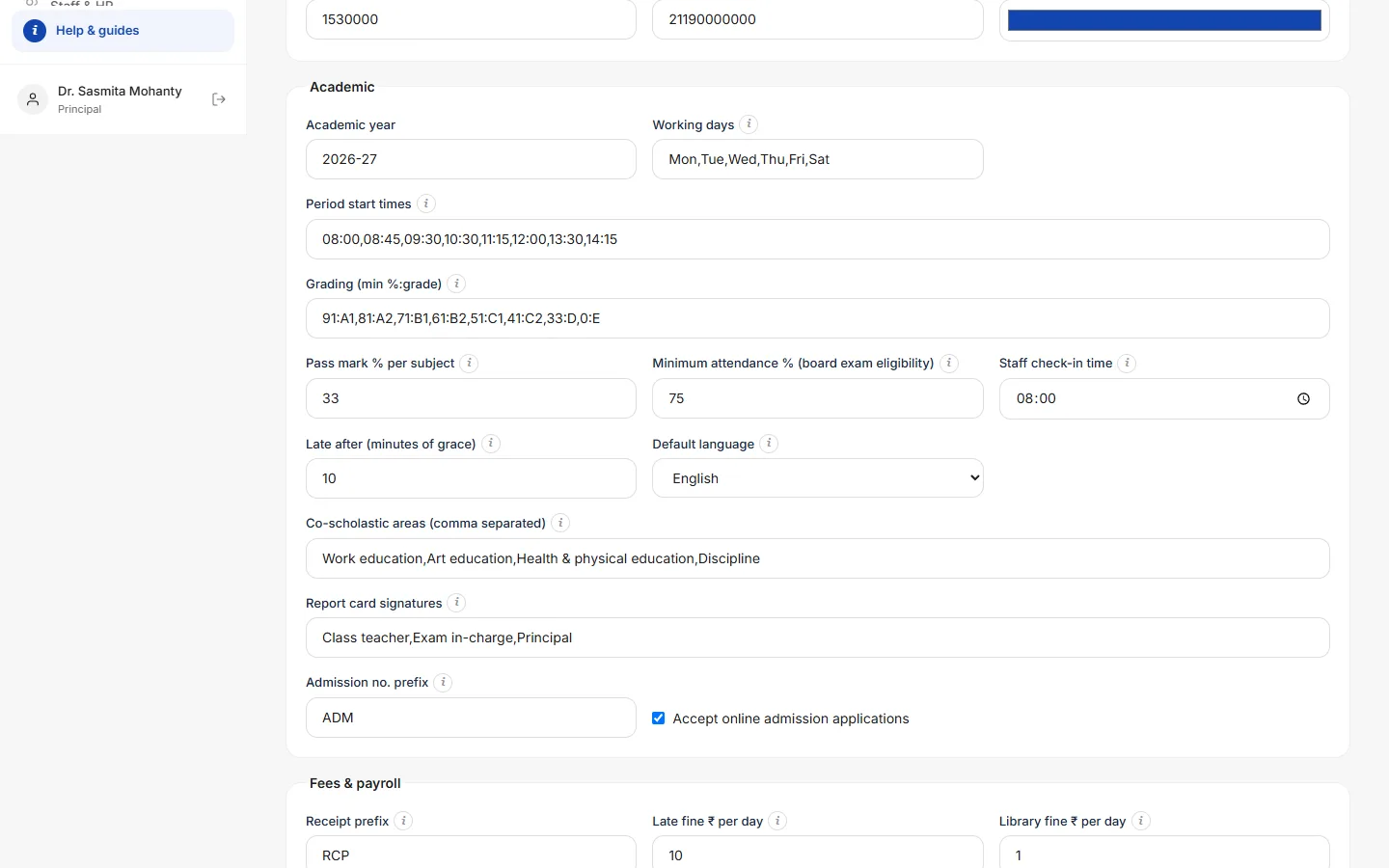
- 5Change the academic yearSchool settings → Academic → Academic year, for example 2027-28, then Save settings. It prints on report cards and ID cards, and the attendance eligibility count starts again from 1 April.
The new year's fee plans
adimata.com/schoolos/app/fees
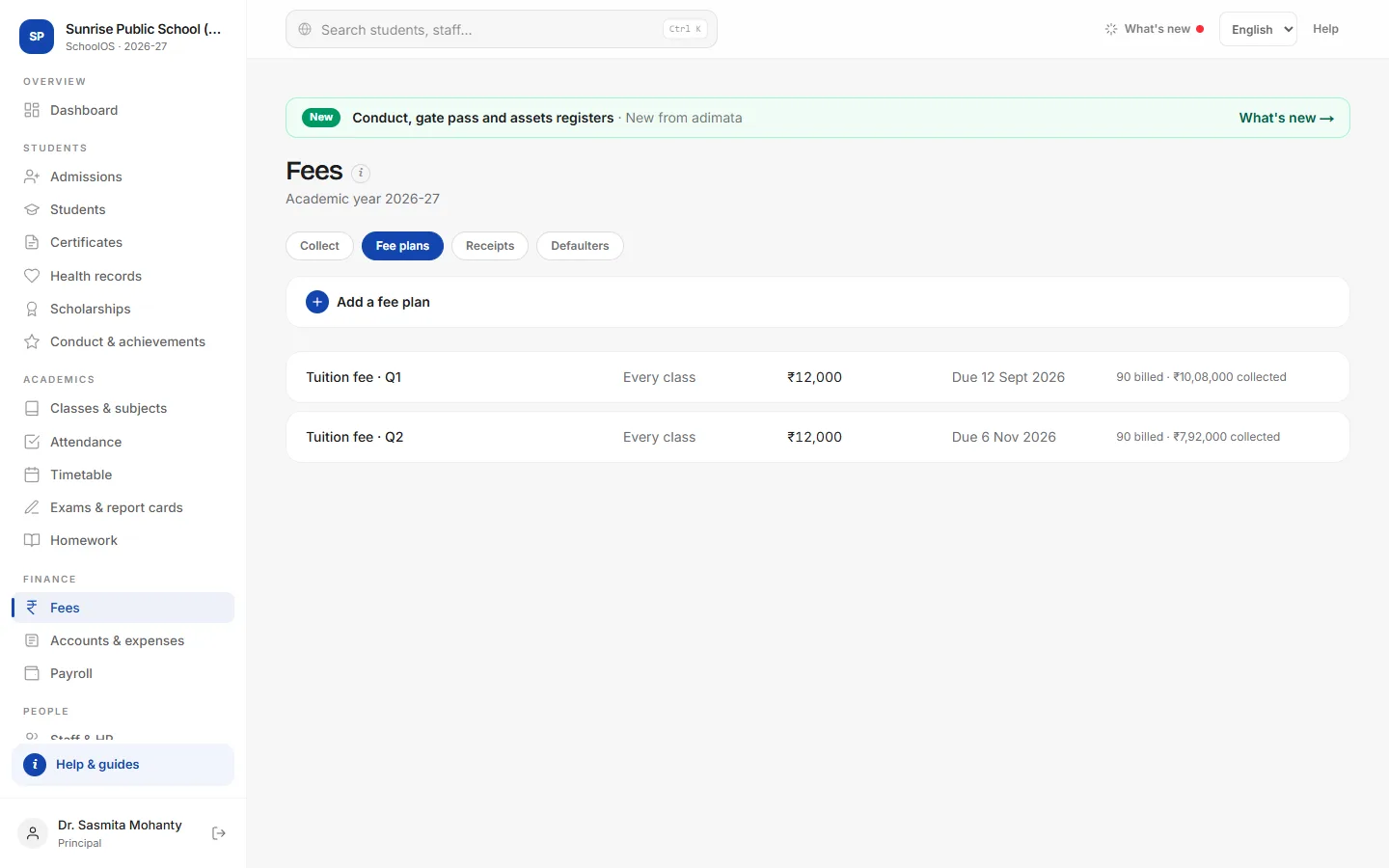
- 6Create the new fee plansAdd one plan per instalment with the new amounts and due dates, then press Bill students on each. Old bills and their dues stay on each student's account.
- 7Carry on as usualAttendance, exams and payroll continue. Last year's exams stay in the list; create new exams for the new classes.
Common mistakes
- Promoting bottom-up (VI before VII): two years land in one section.
- Forgetting the academic year in settings: report cards and ID cards keep the old year.
- Pressing Bill students on last year's plan: students not yet billed (new admissions) get last year's fee.
Tips
- Print the attendance registers and the defaulter list of the old year before you promote.
- Put the year in new plan names, for example Tuition fee · Q1 2027-28, so nobody bills last year's plan by mistake.
- Issue TCs first: students marked as left are not promoted.
Problems and questions
I promoted the wrong section.
There is no one-click undo. If the section you moved them into had no other students, promote them back. Otherwise change the Class on each student's record.
Will attendance and fee history be lost?
No. Promotion only changes the class. Attendance, receipts and results stay on each student's record.
Where are last year's passed-out students?
On Students, set the status list to Alumni.