3 min read
Working with registers: add, find, filter, export and print
Most SchoolOS modules are registers: a list of entries with a form. The buttons, filters and shortcuts are the same on every one, so this guide applies to all of them.
- Who can do this
- Everyone who keeps a register
- You need
- Opening a register needs View on its module; adding, editing, status buttons and Copy as new need Edit. Export and Print work for anyone who can open the register.
- Not your job? Pick your role →
A register (Visitor log)
adimata.com/schoolos/app/r/visitors
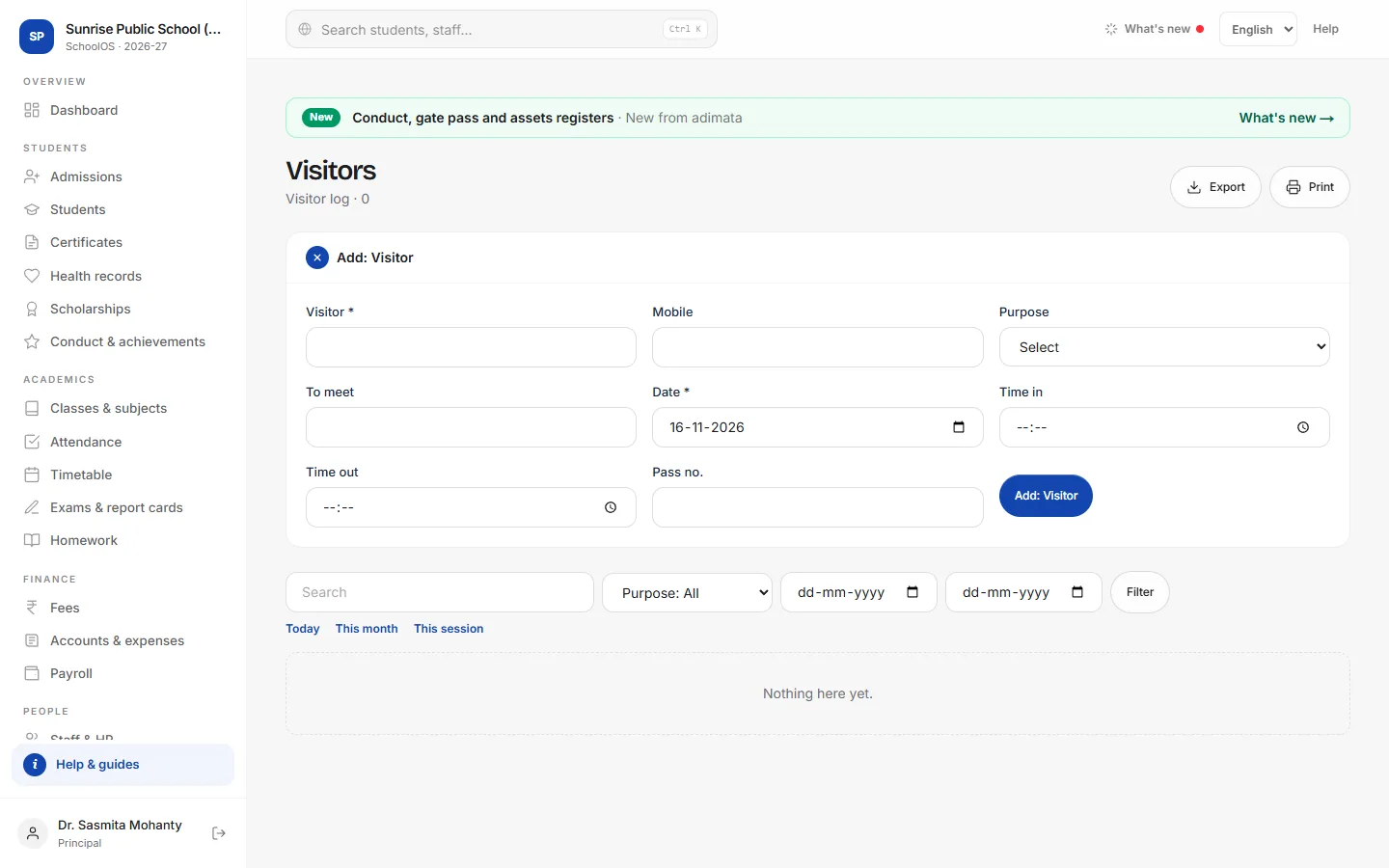
- 1Add an entryPress Add: <entry>, for example Add: Visitor. Fields with * are required. The main date starts on today.Step by step
- Press Add: … to open the form (it opens by itself when the register is empty).
- For a student, type the admission number or name and pick from the list.
- Press the Add: … button at the bottom of the form.
- 2Open, change or copy an entryClick a row to open it. Change fields and press Save, or Delete. Copy as new opens a fresh form filled with the same details, for a repeat visitor or a weekly entry.
- 3Change the status in one clickRegisters with a Status show a button for every other status under the open entry, for example Approved or Resolved. Approving a leave request this way still marks the days as leave in attendance.
- 4Find and filterSearch, up to three lists (Status, Purpose…), From and To dates, then Filter. Filters combine and stay while you page through 50 rows at a time. Today, This month and This session set the dates in one click; Clear filters resets.
- 5Needs attention and the tilesTick Needs attention for what is waiting (overdue books, pending leave, call backs…). The tiles above the list count each status; click one to filter by it. Some registers add totals or a ranked board, such as expenses by head.
- 6Export and printExport downloads exactly what the filters show as a CSV for Excel. Print opens a clean table with the school name, the filters and the date.
Common mistakes
- Typing a student's name without picking from the list: the entry is refused if the admission number isn't found.
- Deleting entries to “tidy up”: change the status instead, so the history stays.
Tips
- Filter first, then Export or Print: you get only the rows you need.
- This session runs from 1 April of the academic year in School settings.
- Registers marked Confidential write no details to the activity log.
Problems and questions
The list says “Nothing matches these filters.”
A filter is still on. Press Clear filters.
A link says “Add: Rooms →” above the form.
This register picks from another one that is still empty (for example Allocations needs Rooms). Add those first.
I can see the register but there is no Add button.
Your role has View on this module, not Edit. Ask the principal.